Tuesday Tooling: OpenLogi
There aren't any official drivers for my new mouse, but the community has already solved my problem!
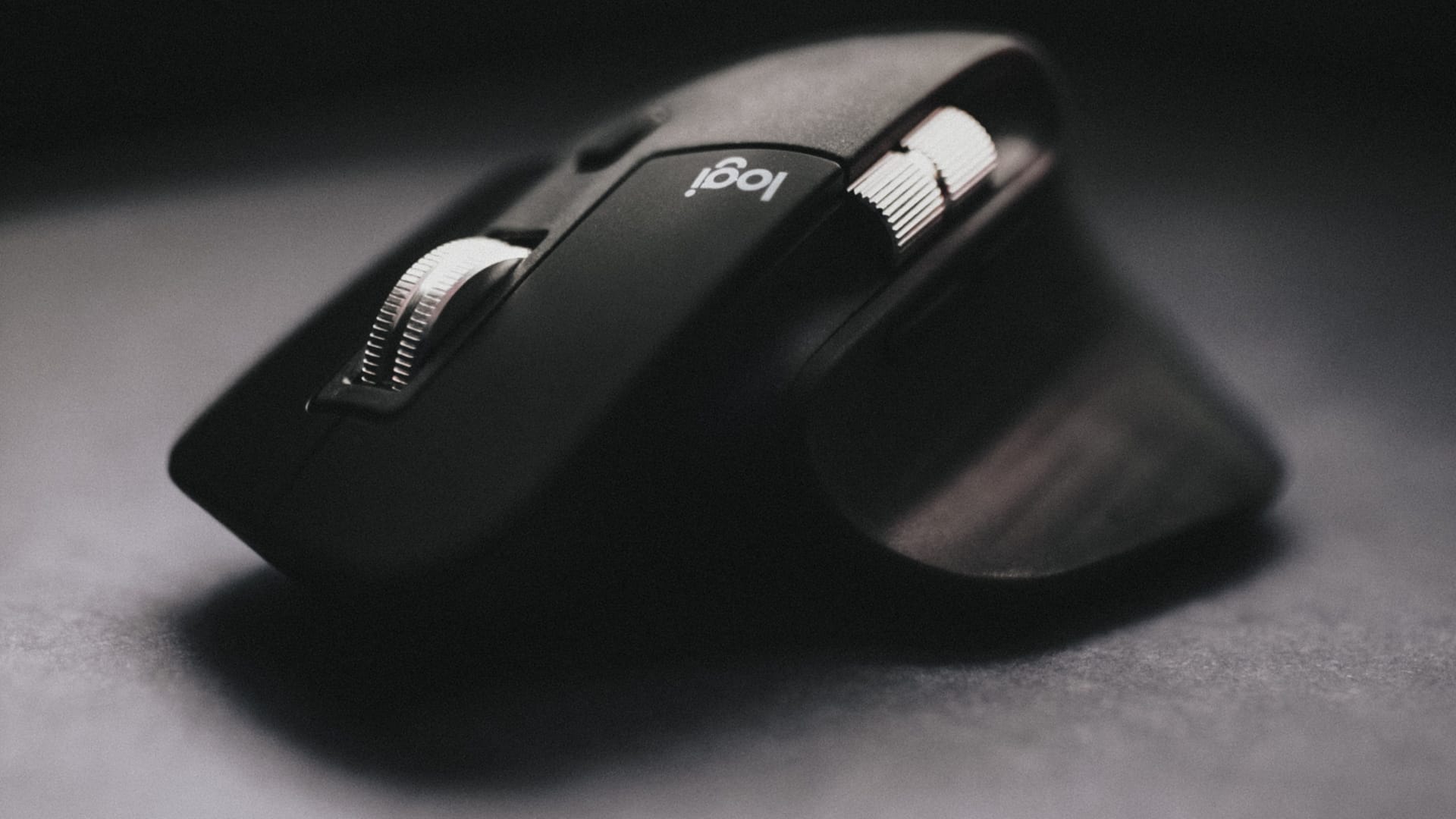
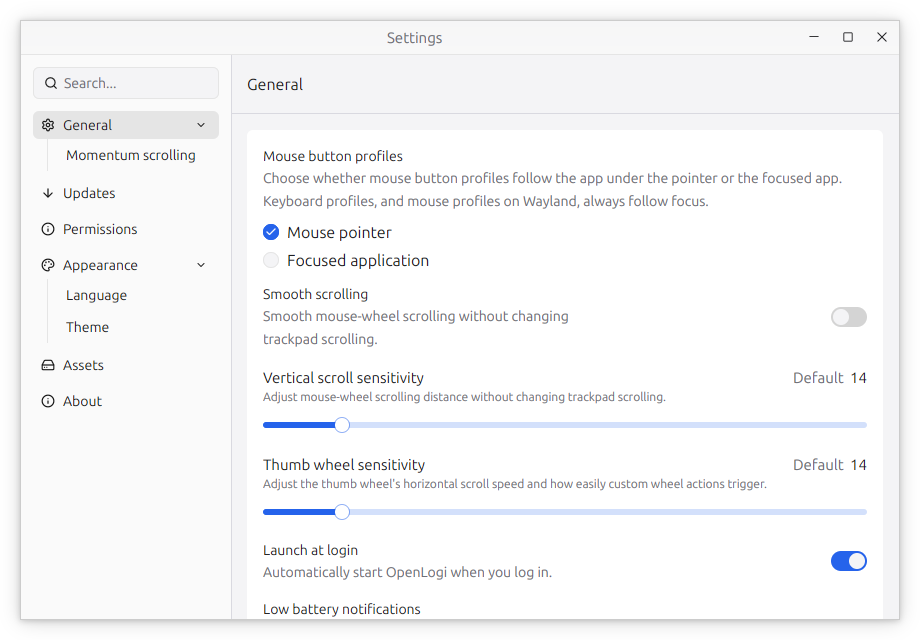
I recently upgraded my aging Logitech MX Master 3 to the current model. The Logitech MX Master 4 is a subtle upgrade, and my main reason for the switch was that the "rubber" on my Master 3 was starting to get sticky. Yes, just like an old Thinkpad, the Master 3 has a rubberised coating on the shell and over time it gets a bit yuck.
I can't relaly blame it. I have owned the Master 3 for five years now, and it gets 50+ hours of use per week.
I did have one problem with my upgrade. Software.
Head over to the Logitech website and you'll find now Linux drivers, only Windows and macOS.

Without a driver, I can't use the advanced features on my Linux PC, and if I use the drivers on my Windows 11 machine, it will send information back to Logitech.
But, there is another way!
So, What Is The Other Way?

A local-first alternative to Logitech Options+, written in Rust.Remap buttons, drive DPI and SmartShift over HID++.No account, no telemetry.
So, How Do I Install It?
Head over to the OpenLogi install page and download the installer for your OS.
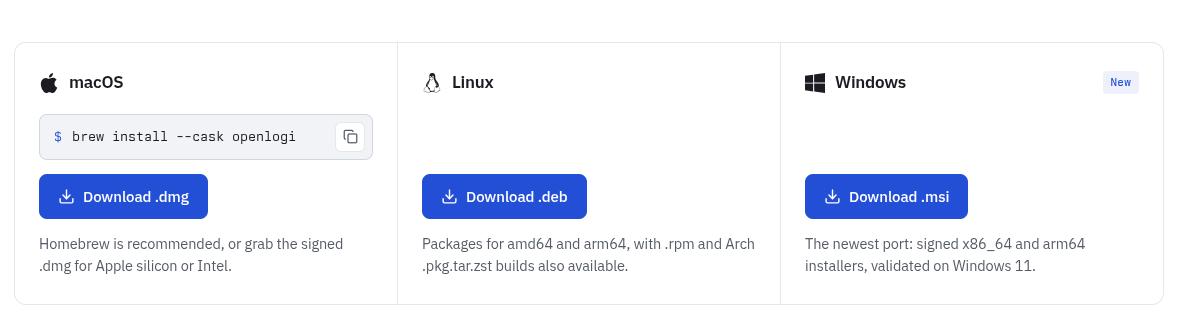
After installation, reboot your computer. This gives OpenLogi a fresh start and ensures that everything is ready to go.
So, Is It Just For Mice?
No! On my main Linux PC, I have a Logitech webcam and OpenLogi also gives me full controls over that too.
So, How Do I Use It?
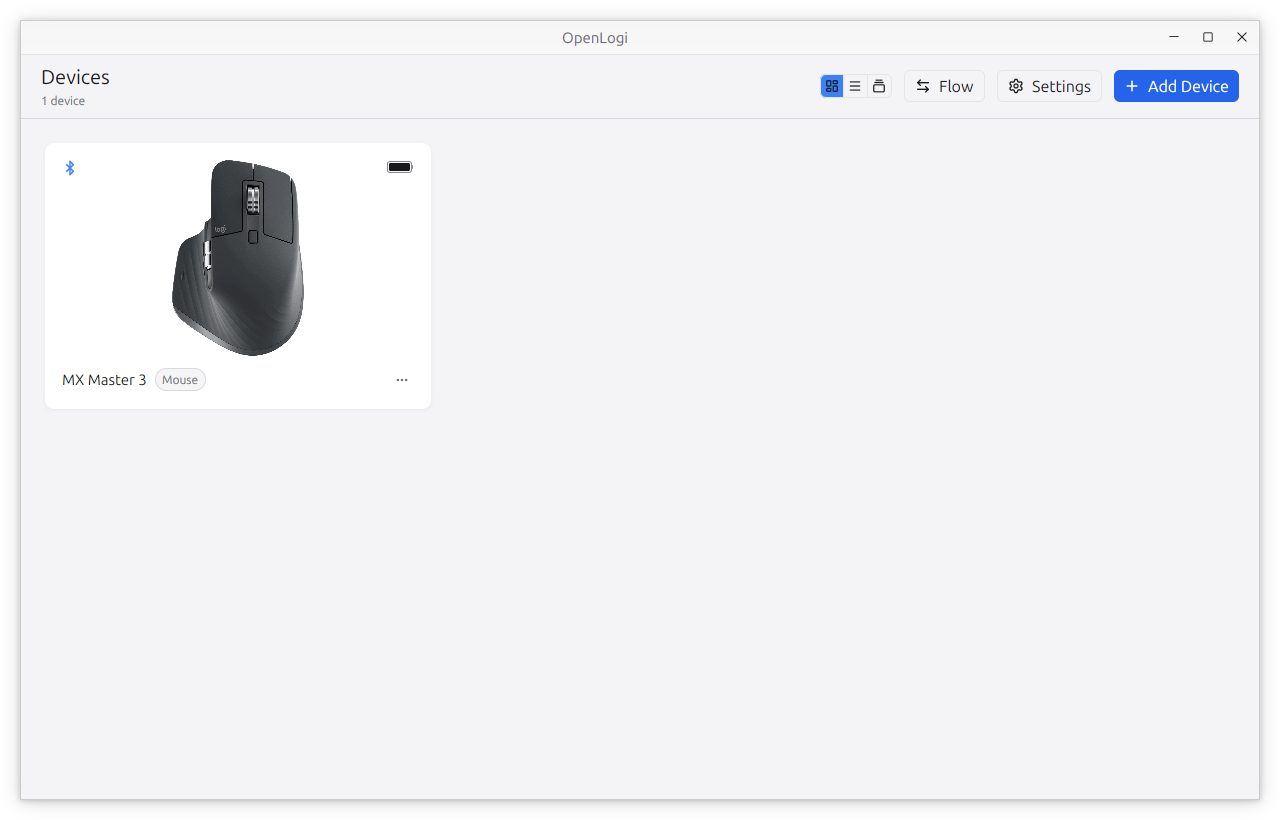
Open the app and if you haven't got a device connected, it will ask you to connect one. I connected my old MX Master 3 to my laptop and it was there in the app.
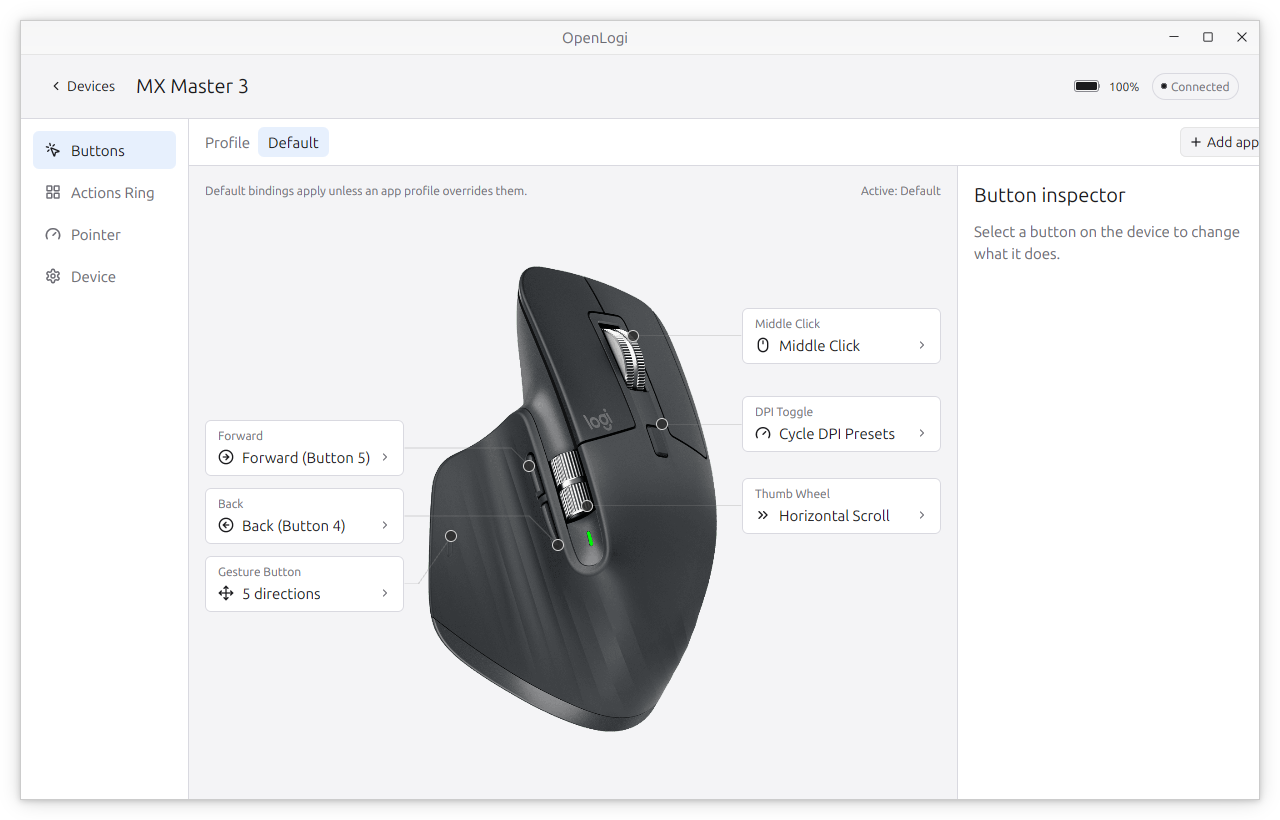
In Buttons you can select any of the buttons, in this case the large flat button on the left side of the mouse, which I configured it to show an Actions Ring.
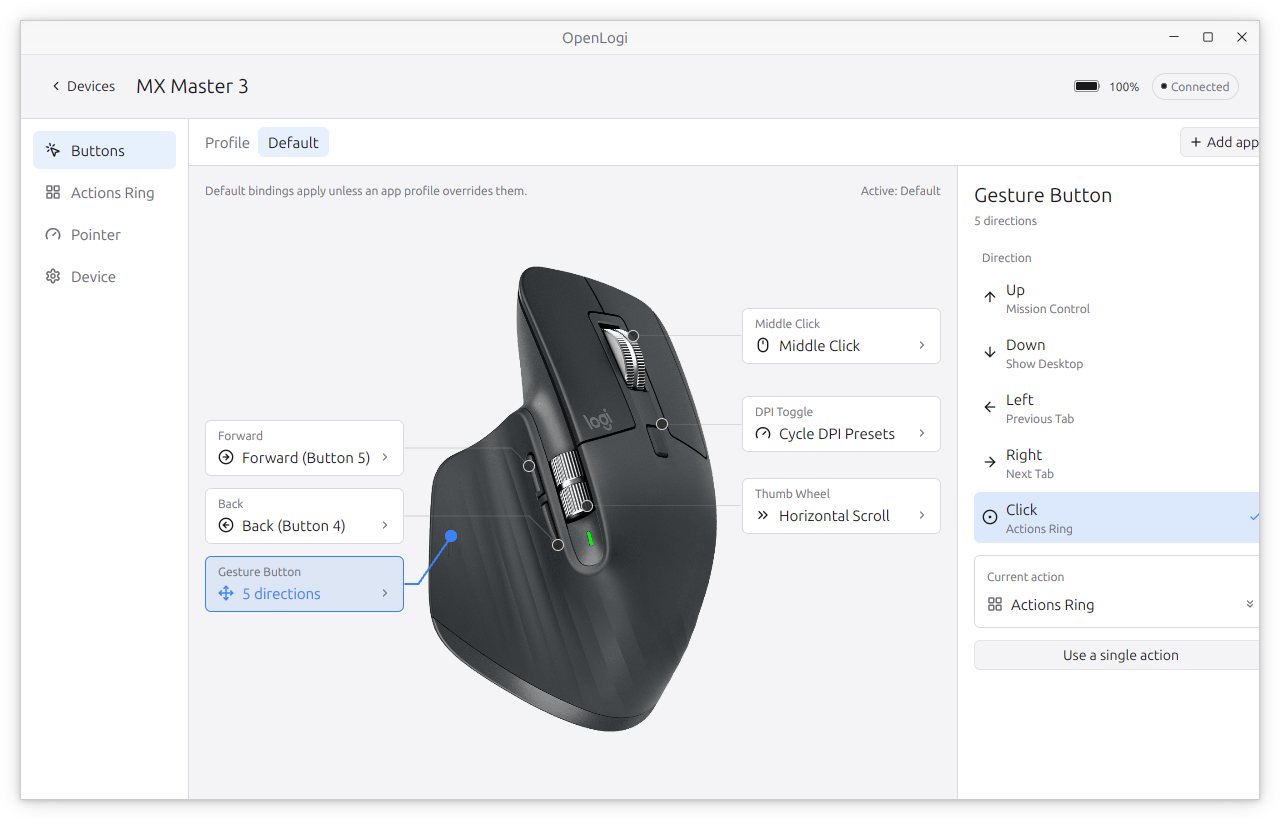
The Actions Ring is essentially a shortcut to whatever commands you want quick access to. It can be triggered in any application or even the desktop.
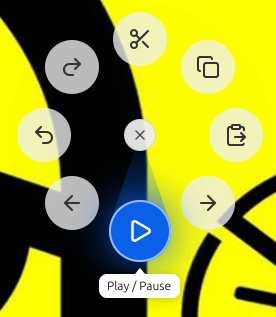
The Actions Ring has its own entry in the app, making it easy to customise for your particular use.
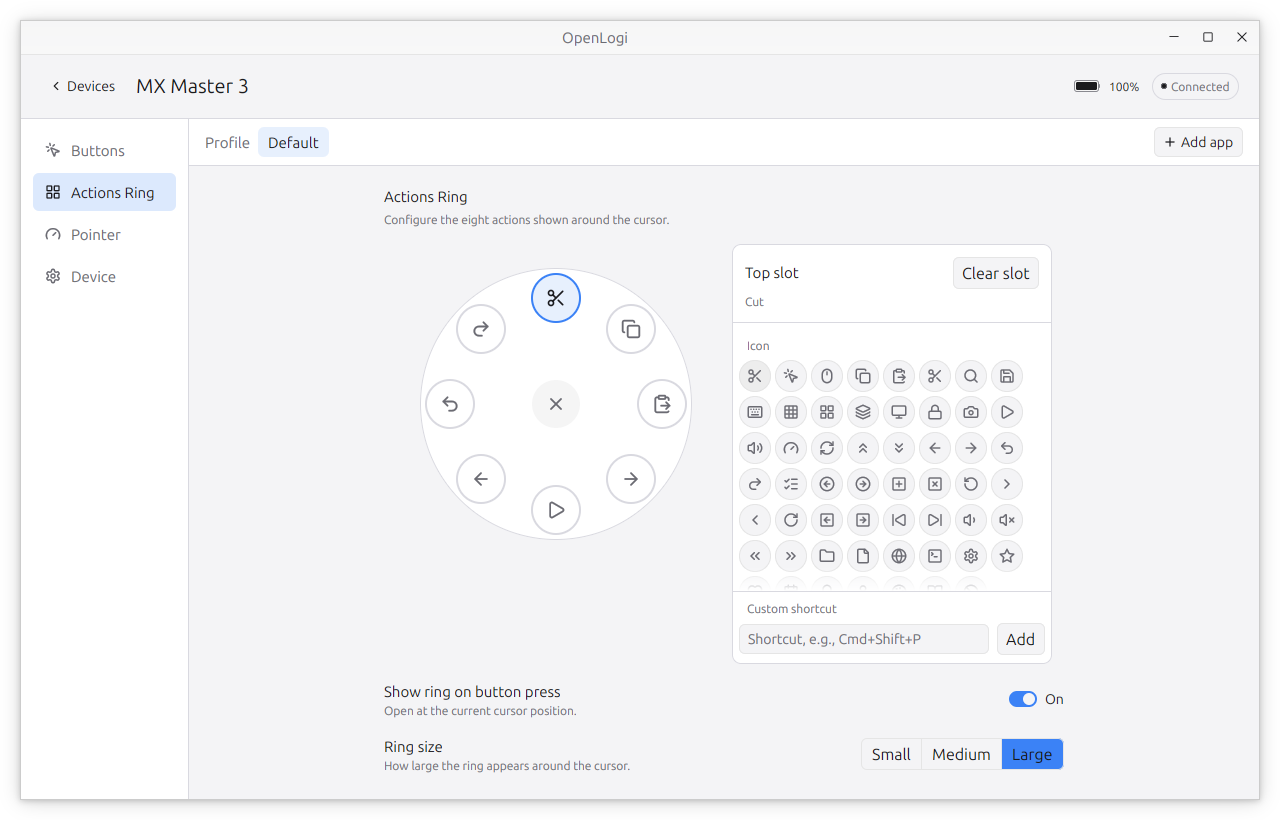
Want to tune the pointer resolution, thumbwheel and mousewheel scroll speed? Change the feel of the free scroll? You've got it all via the Pointer menu.
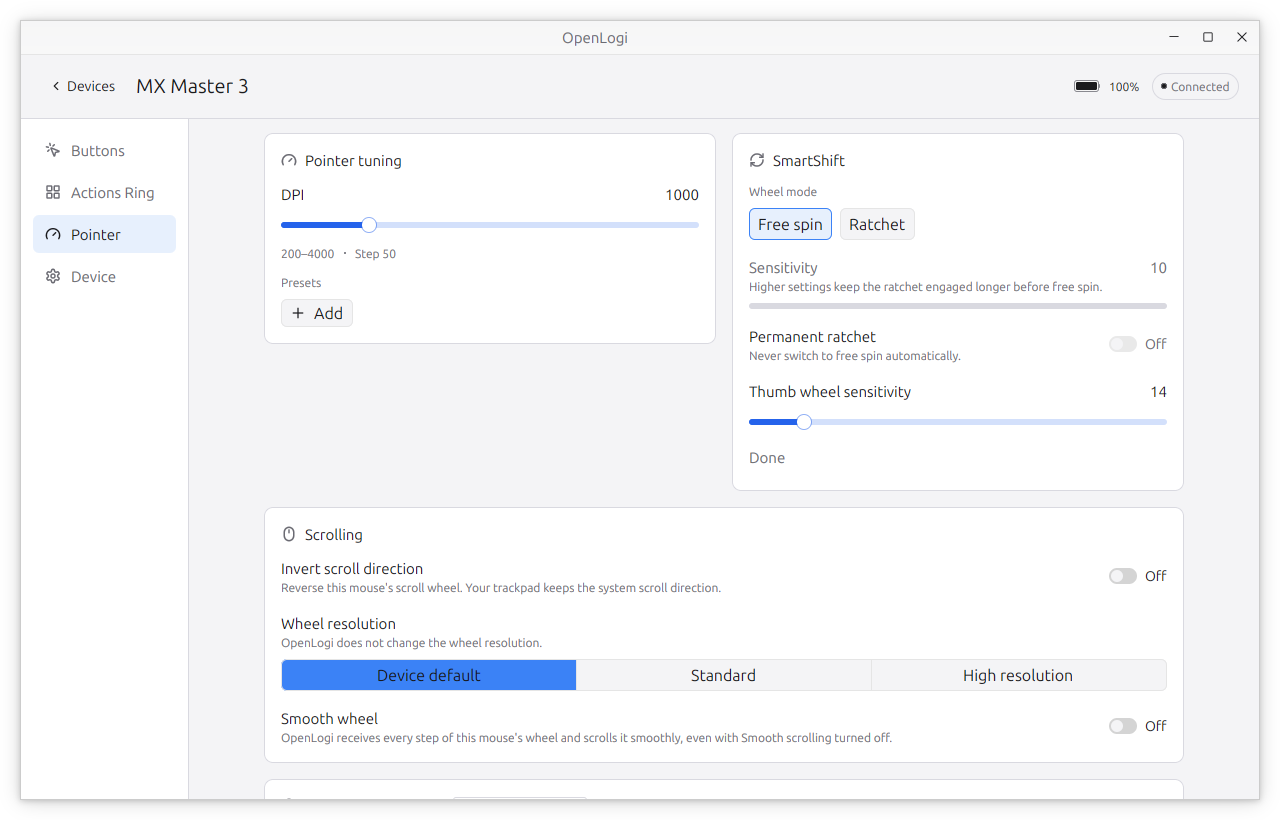
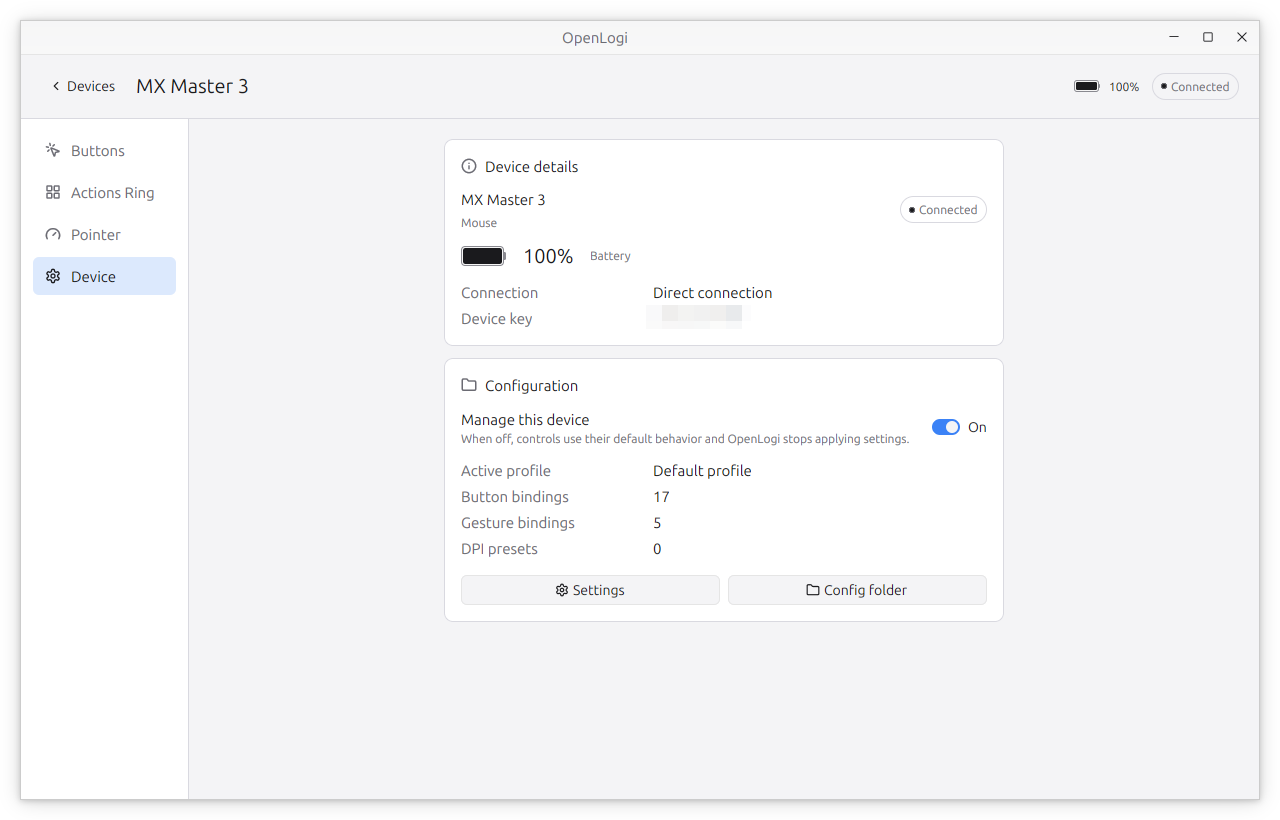
In Devices we can see the details of the device and it configuration.
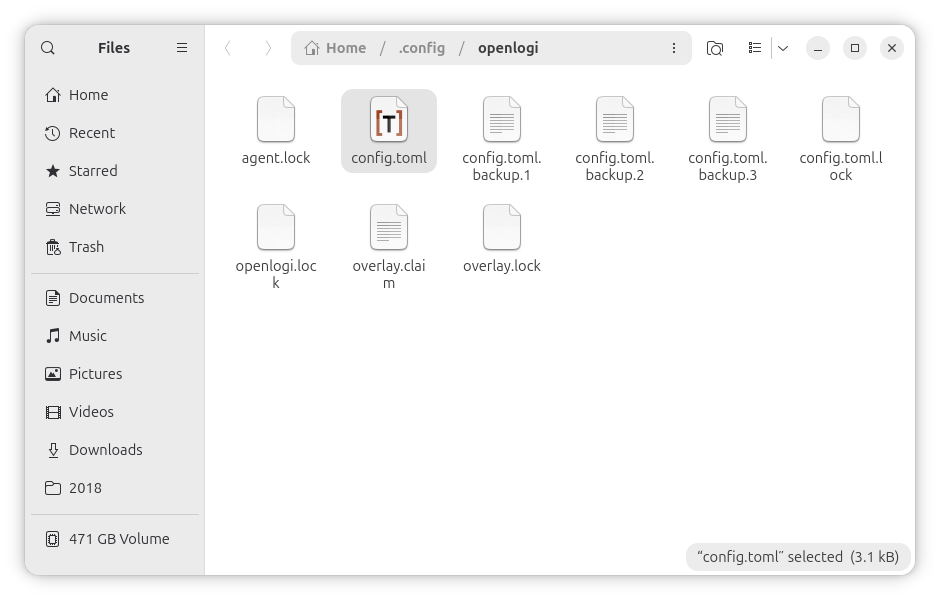
Clicking on the Config Folder button, we get access to the raw config.toml file which can be backed up once we have the setup to our liking.
Clicking on Settings, we get the general application settings menu.